Add & Approve Contacts
Contacts are the people your child can call — and who can call them. It all works with Yarnie Numbers, so let's start with the two numbers you'll use.
Two Yarnie Numbers to Know
Every Yarnie phone has its own Yarnie Number — and so does every app user. As the admin, you manage your child's number, and you have one of your own.
My Yarnie tab
Share this oneYour Child's Yarnie Number
This belongs to your child's Yarnie phone. It's the number to call to reach your child — this is the one you'll share. Grandparents, family friends, and other Yarnie kids all add this number to call your child.
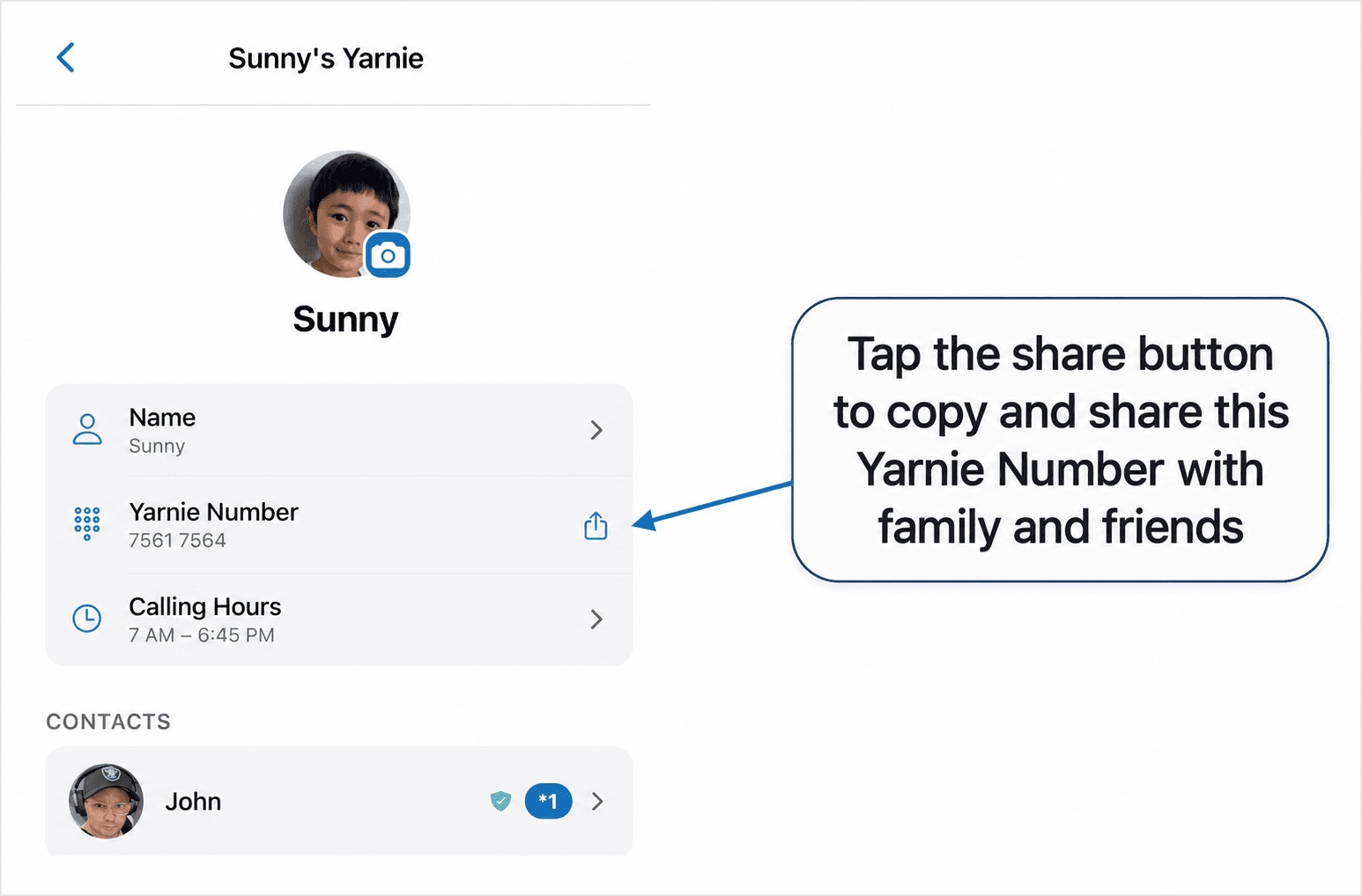
You tab
Your Own Yarnie Number
This belongs to you as an app user. You rarely need to share it — only when a child with their own Yarnie device wants to call you. Say a niece or cousin has a Yarnie: give her parent this number so she can call you from her Yarnie phone.
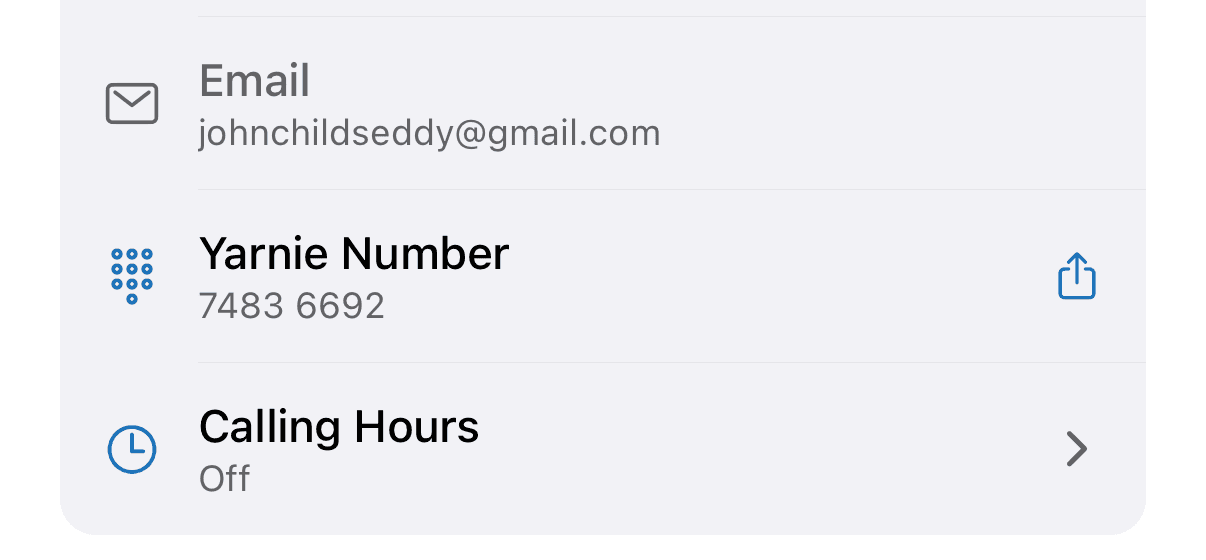
Rule of thumb: sharing so someone can call your child? Share the number on the My Yarnie tab. Sharing so another Yarnie kid can call you? Share the number on the You tab.
- 1
Share Your Child's Yarnie Number
Open the My Yarnie tab and share your child's Yarnie Number with the people you trust. When they enter it in their own Yarnie app, it sends a request to call your child — and you get the final say in step 3.
- 2
Add a Contact
To add someone yourself, open the My Yarnie tab, scroll to Contacts, tap Add a contact, and enter their 8-digit Yarnie Number. Adding another child's Yarnie sends a request to their parent first.
- 3
Approve Requests
You're always in control. When someone asks to be a contact for your child, the request appears on your Home feed — tap Approve or Decline. Nobody can call your child until you approve them.
Use Real Numbers Your Child Knows
Yarnie has its own private, secure calling network — calls never touch the phone company. That's why Yarnie works anywhere in the world, and it also means the numbers your child dials are completely up to you.
Yarnie assigns every contact a Yarnie Number — but that number is customisable. For anyone your child calls through the Yarnie app, you can change it to any number you choose:
- Your real mobile number — many parents choose this so their child dials Mum's actual number every day and remembers it. It rings the Yarnie app on your phone.
- Numbers your child already knows — if they've memorised Grandma's number, keep it. No new number to learn.
- Numbers you want them to learn — knowing a parent's real number by heart is a skill that matters well beyond Yarnie, and daily dialling is the best practice there is.
To set one: open the My Yarnie tab, tap the person under Contacts, tap their Yarnie Number, and choose Set Custom Number.
Good to know: custom numbers work for contacts who use the Yarnie app on their smartphone — other Yarnie phones keep their own fixed Yarnie Number. And the number is private to your child's Yarnie: it doesn't change anything for the person you're calling or for other families.
Need help? Text 0434 145 075 for real time support.